

Installation and first start
What you need
Section titled “What you need”- A computer with Windows 10 or later, macOS or Linux.
- A USB reader with the fiscal module.
- A register created in the cabinet and its connection code.
- The reKassa Desktop installer — always the latest version: Windows, macOS, Linux.
Installation
Section titled “Installation”- Run reKassa-Setup as an administrator. The program is installed for every account of the computer. 2. If Windows shows «Windows protected your PC», press «More info» → «Run anyway». 3. Wait for the installation to finish. The register service starts by itself and will start when the computer is switched on, before anyone signs in. 4. Open reKassa from the desktop or the Start menu.
- Open the reKassa.dmg image and drag reKassa to the Applications folder. 2. Open reKassa from Applications. At the first start macOS may ask for a confirmation: right-click the program and choose «Open». 3. The register service starts with the window; it needs no installation of its own.
For the service to work without the window open — for programs that issue receipts through the register — switch on Settings → Register → «Register service at macOS sign-in».
- Unpack the reKassa-…-linux-x64.tar.gz archive. 2. In the unpacked folder run
sudo ./install.sh. The reader needs thepcscdservice. 3. Open reKassa from the applications menu.
Connecting the register
Section titled “Connecting the register”At the first start the window asks for the connection code. The seven-character code comes from the cabinet: it is valid for 24 hours. Plug in the reader with the fiscal module and type the code — the register loads its data: the organisation, the cashiers and the products.
Signing in with a PIN
Section titled “Signing in with a PIN”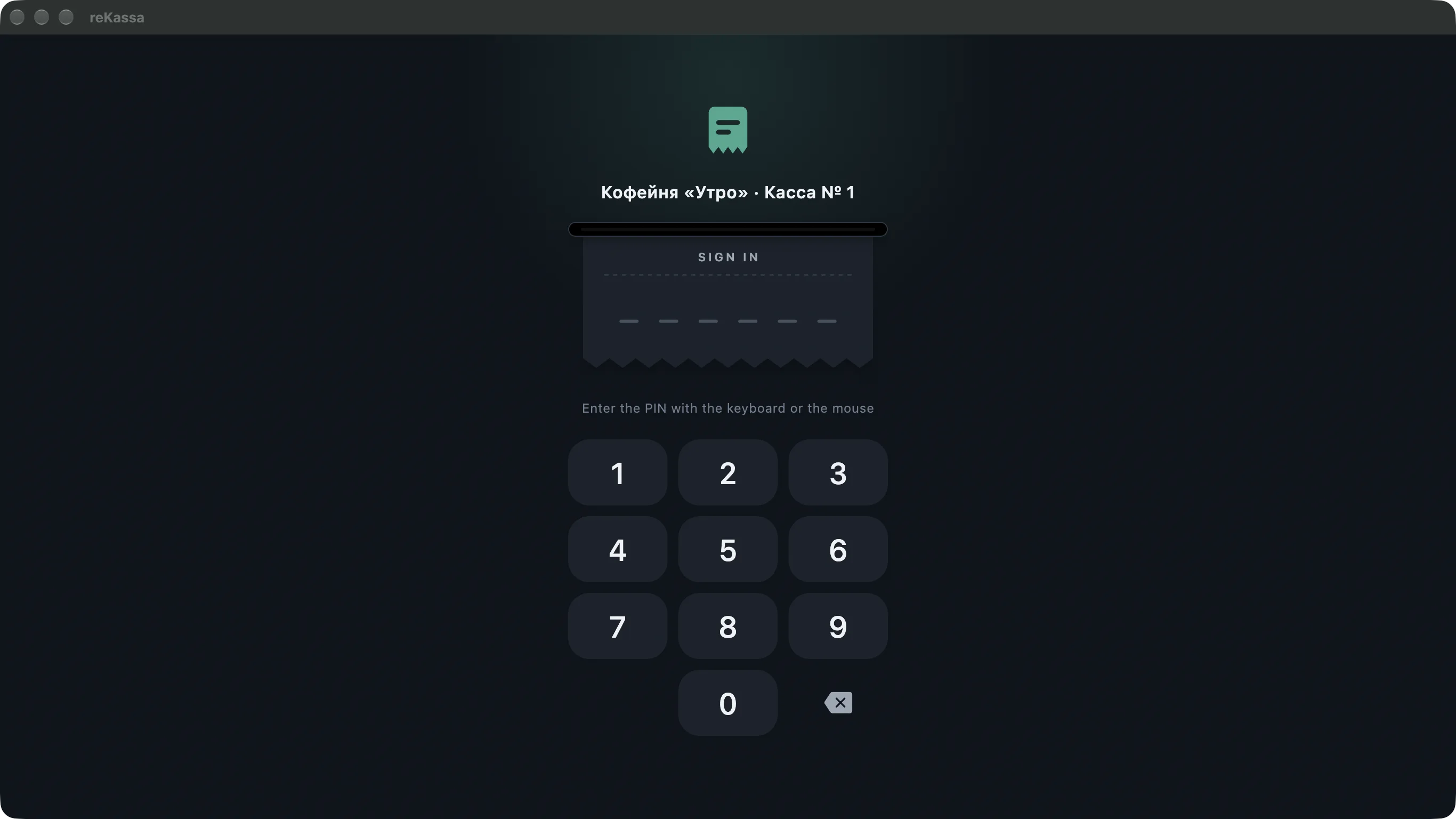
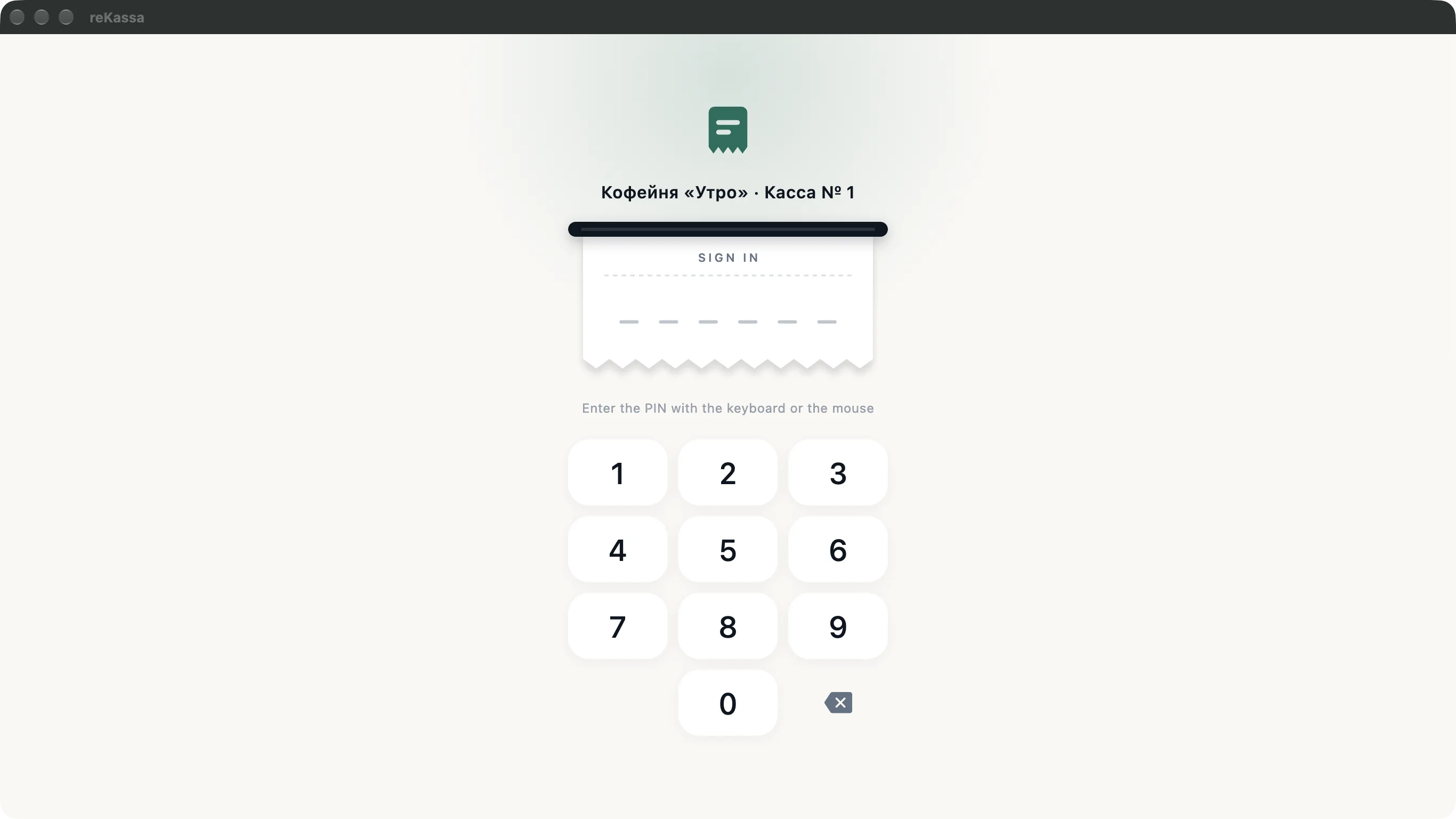
Each cashier signs in with their own six-digit PIN — from the keyboard or with the mouse. PINs are set in the cabinet. A wrong PIN — «Wrong PIN. Attempts left: …».
To sign out, press the button with the cashier’s initials at the bottom left → «Sign out».
If the window says «The register service is not answering»
Section titled “If the window says «The register service is not answering»”The window did not find the register service on this computer. It usually starts by itself and the window connects in a few seconds. If the message stays:
- Windows. Open «Services» and start the reKassa Desktop service, or restart the computer.
- macOS. Quit reKassa (the icon in the menu bar → «Quit») and open it again.
- Linux.
sudo systemctl start rekassa.
If that did not help, write to support.