

Payment and the receipt
The «PAY» button under the receipt (or F2) opens payment right on the receipt.
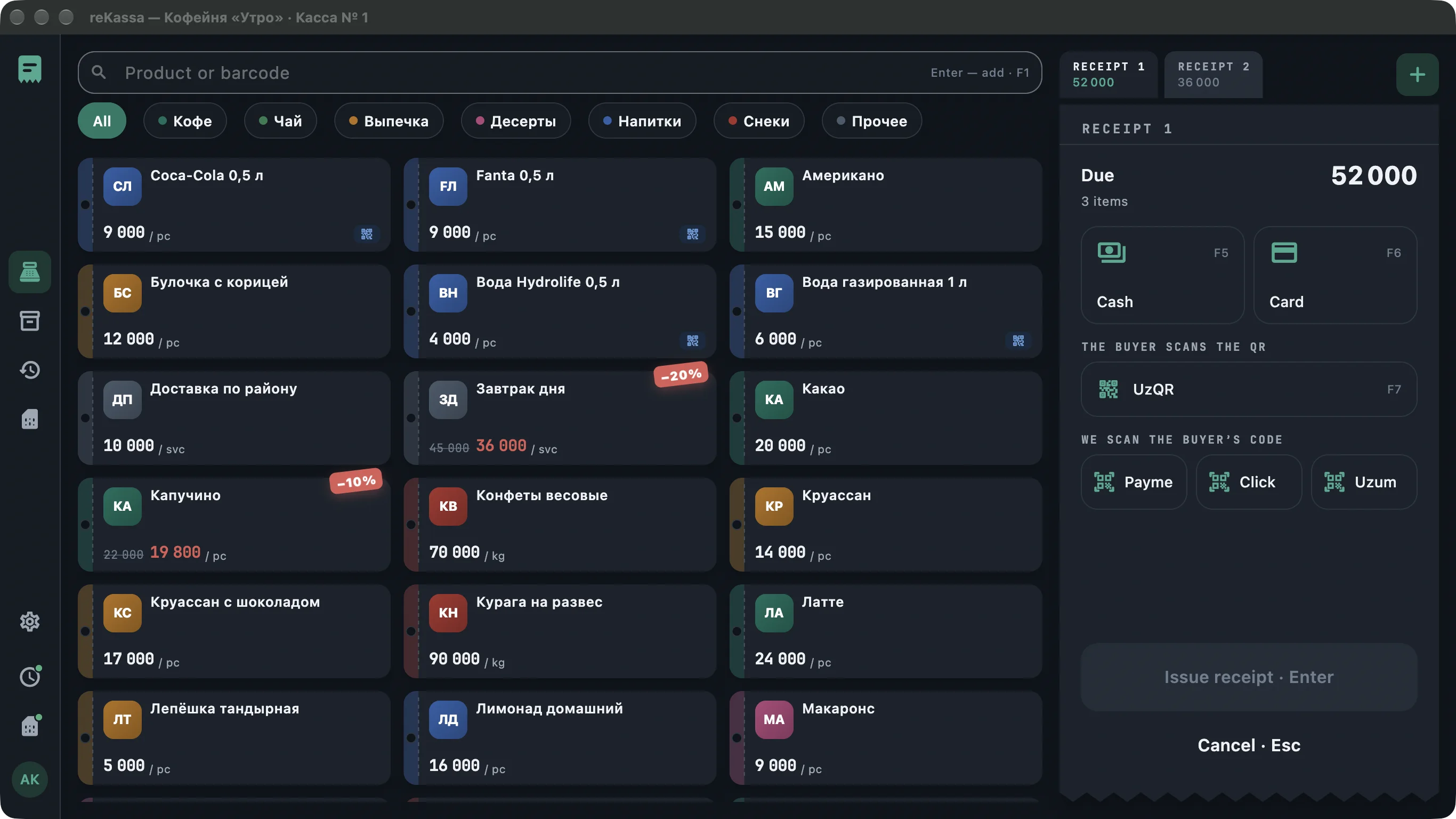
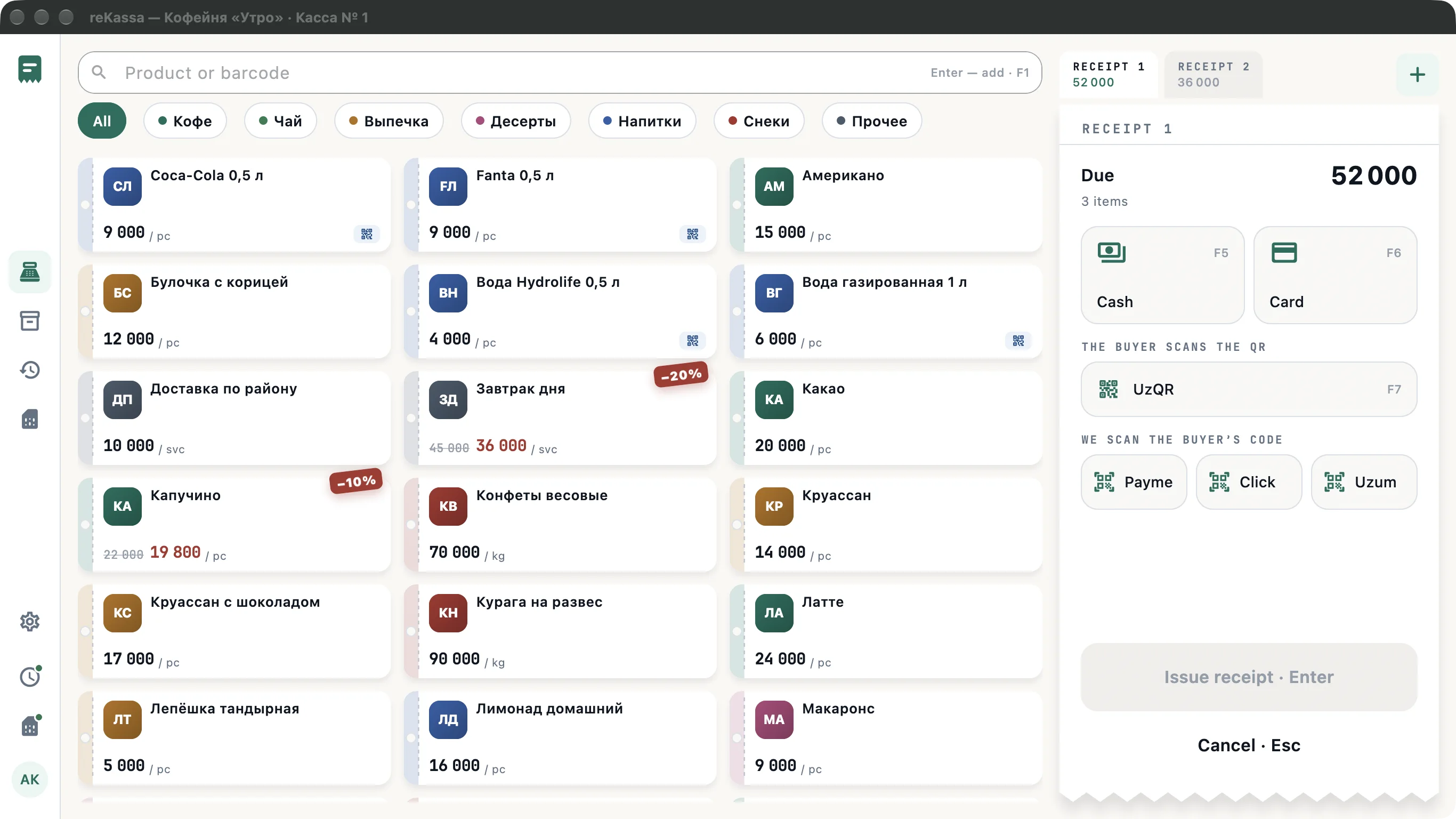
Payment methods
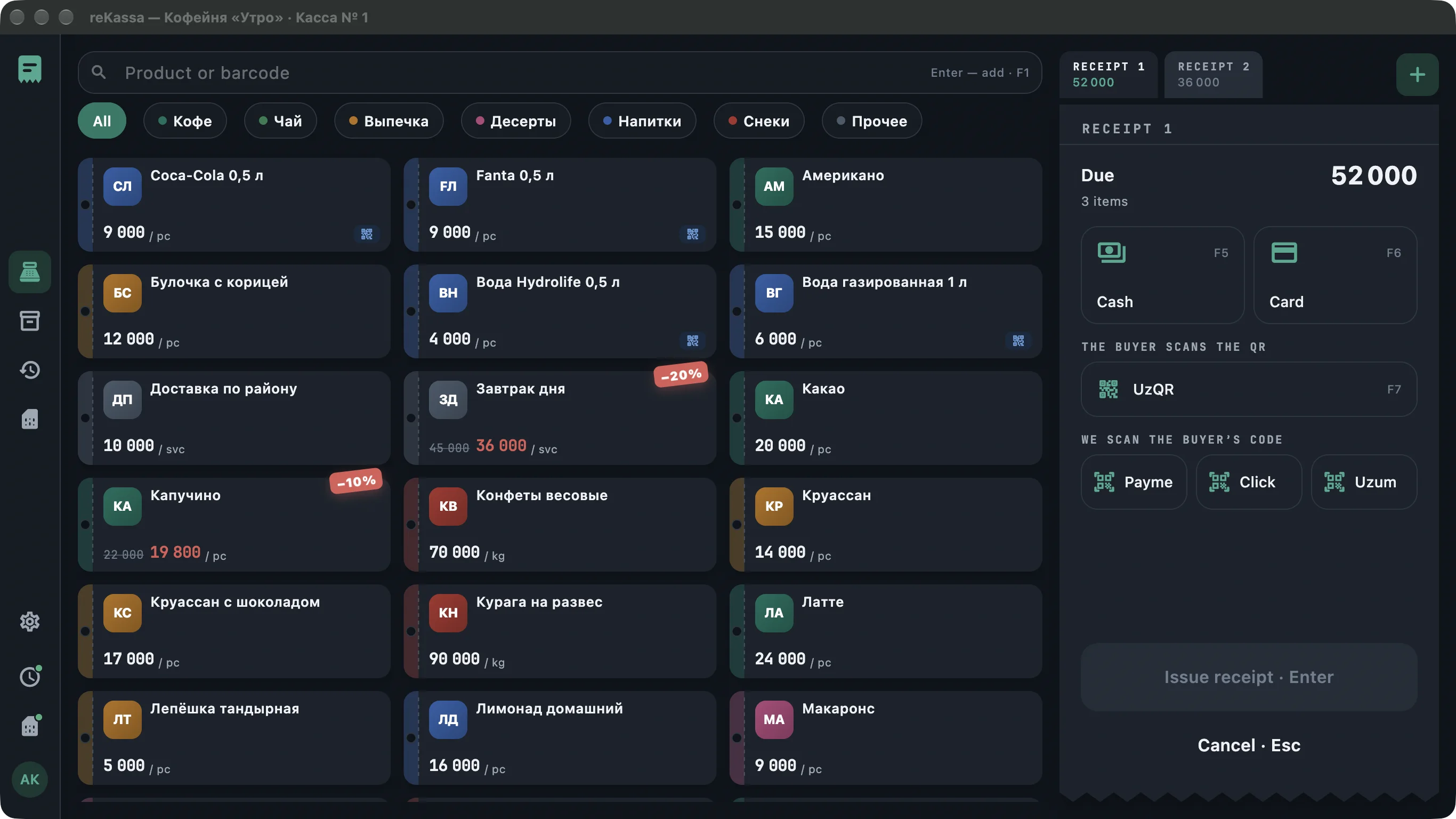
Section titled “Payment methods”- «Cash» (F5) and «Card» (F6) — the two at the top.
- «The buyer scans the QR» — UzQR: the register shows a code, the buyer scans it in their bank’s app.
- «We scan the buyer’s code» — Payme, Click and Uzum: the buyer shows a code in their app, the cashier scans it with a scanner.
Payment systems show once their keys are entered for the register: How to connect payment by QR and card. Which systems are connected and whether they answer is shown in Settings → Payments: the «Check connection» button reaches the payment system from this computer without paying anything.
Cash and payment in parts
Section titled “Cash and payment in parts”-
Press a payment method. The register offers the whole sum: press «Whole amount», or type a smaller one and press «Take» if the buyer pays in parts.
-
The parts taken are listed, with «Left to pay: …» under them. Add parts until «PAID IN FULL» appears. A wrong part can be removed with its cross.
-
«Issue receipt» (Enter) — the button opens when the receipt is paid exactly.
The register takes exactly the receipt’s sum and counts no change: how much cash the buyer gave and how much to return is up to the cashier.
«Card» opens a window of its own.
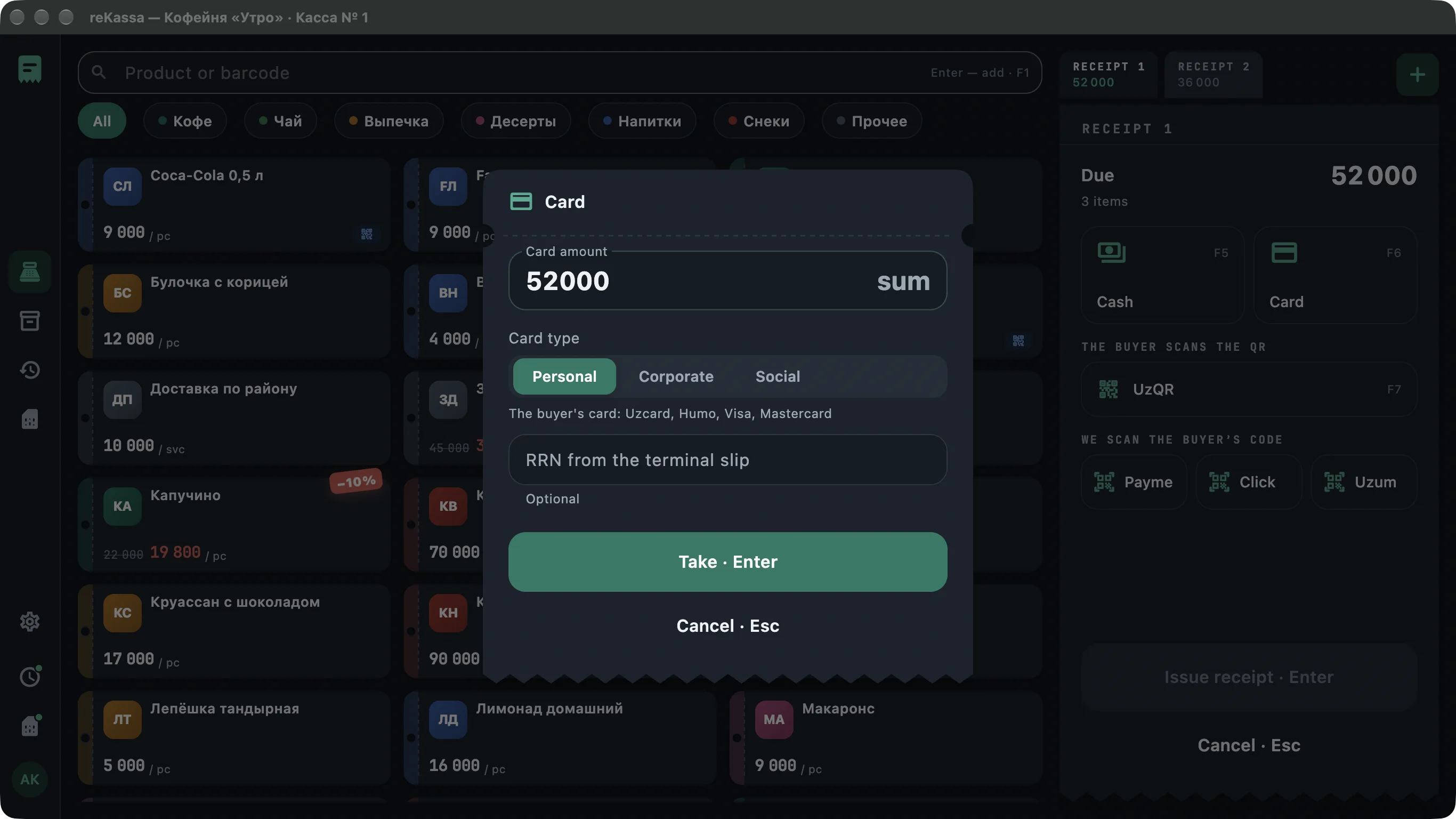
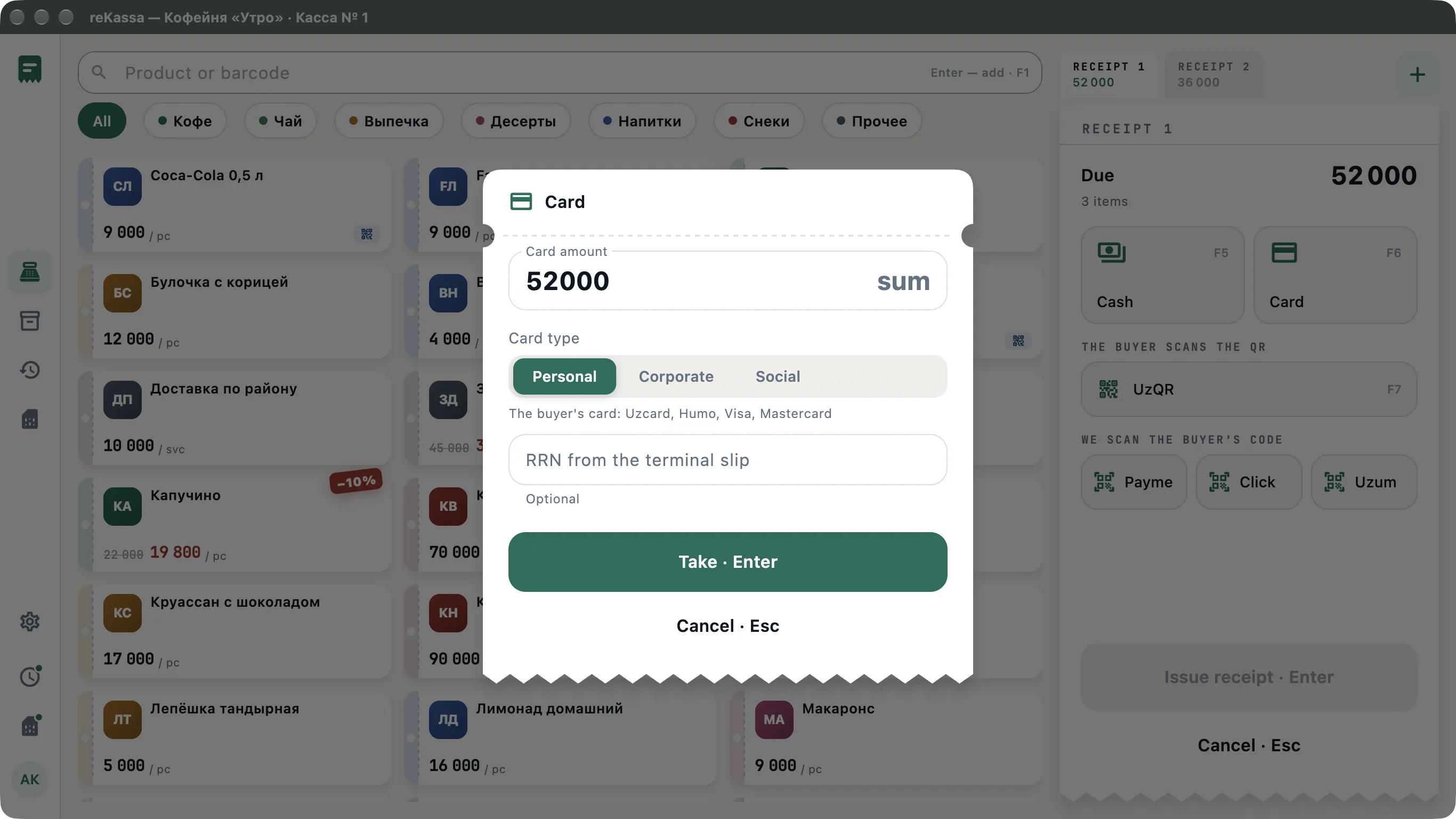
- Card amount — the whole remainder by default.
- Card type — «Personal», «Corporate» or «Social». For a social card type the first and the last four digits of its number — they go into the receipt.
- RRN from the terminal slip — the operation number from the bank terminal’s slip. Optional.
One card payment to a receipt.
UzQR, Payme, Click and Uzum
Section titled “UzQR, Payme, Click and Uzum”Choose the payment system and the sum, then press «Issue receipt».
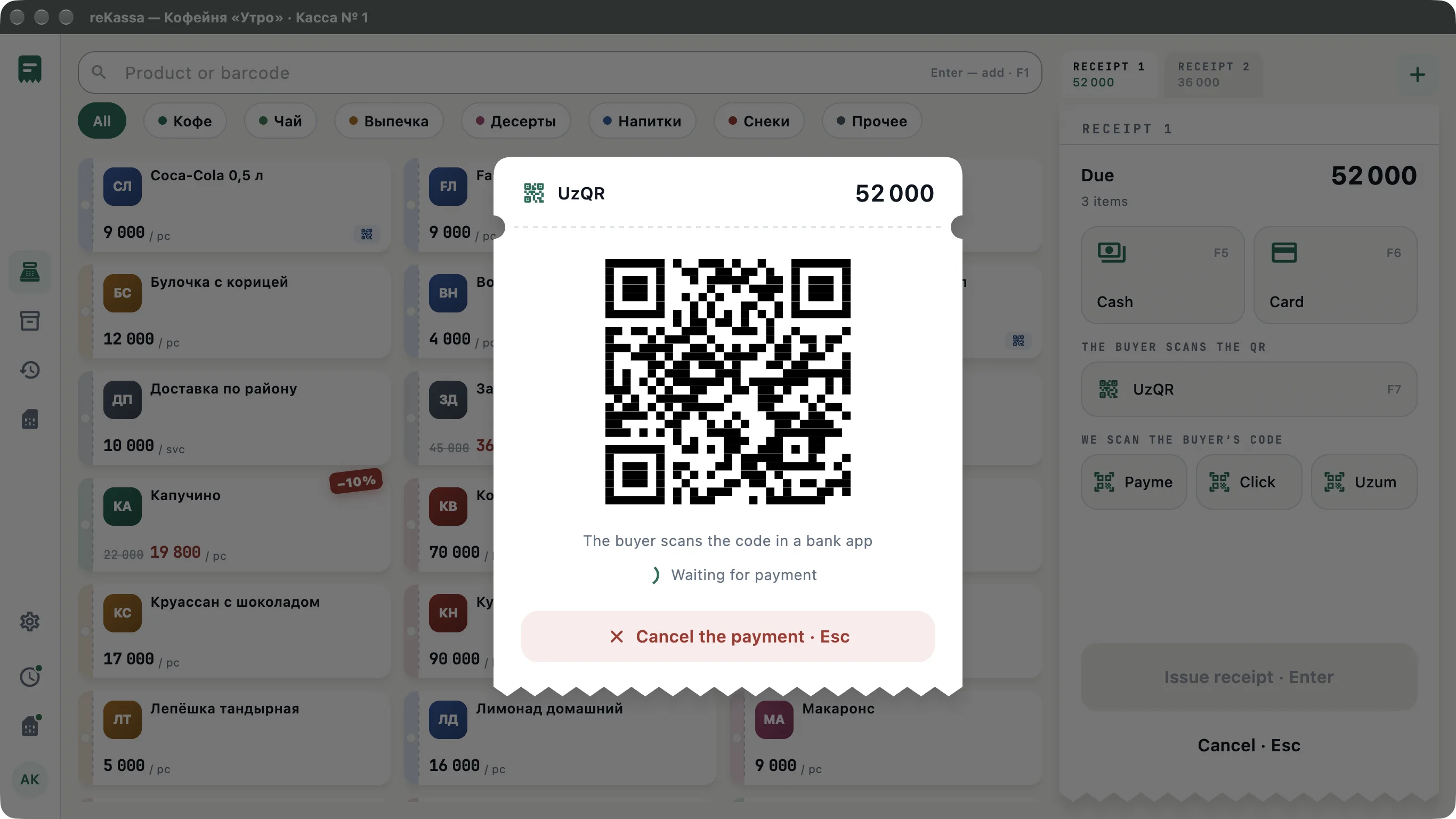
UzQR. The register shows a QR code. The buyer scans it in their bank’s app and confirms the payment.
Payme, Click, Uzum. The buyer opens the payment code in their app, the cashier scans it with a scanner. Nothing is typed — the register waits for the scanner and takes the code itself.
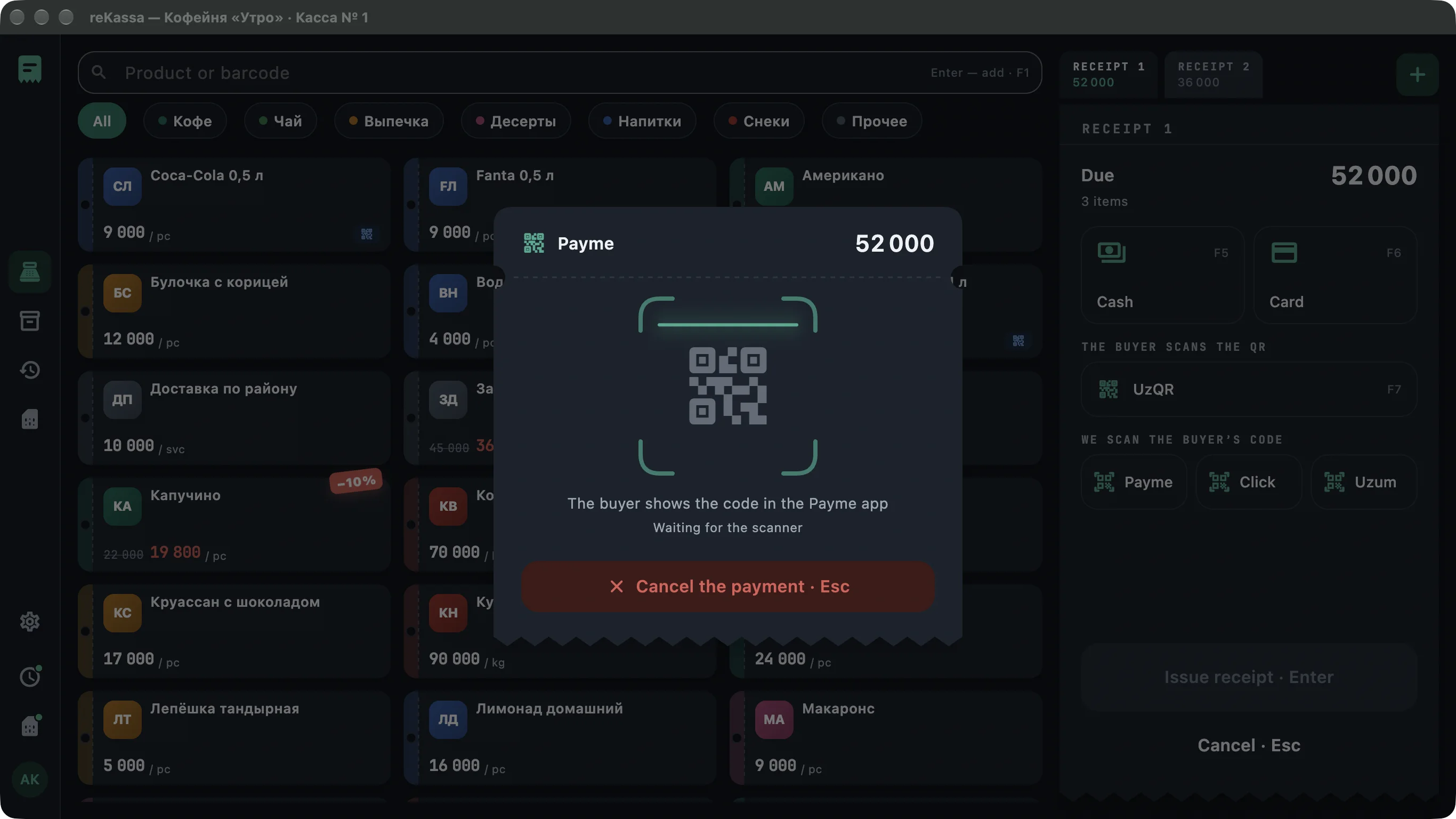
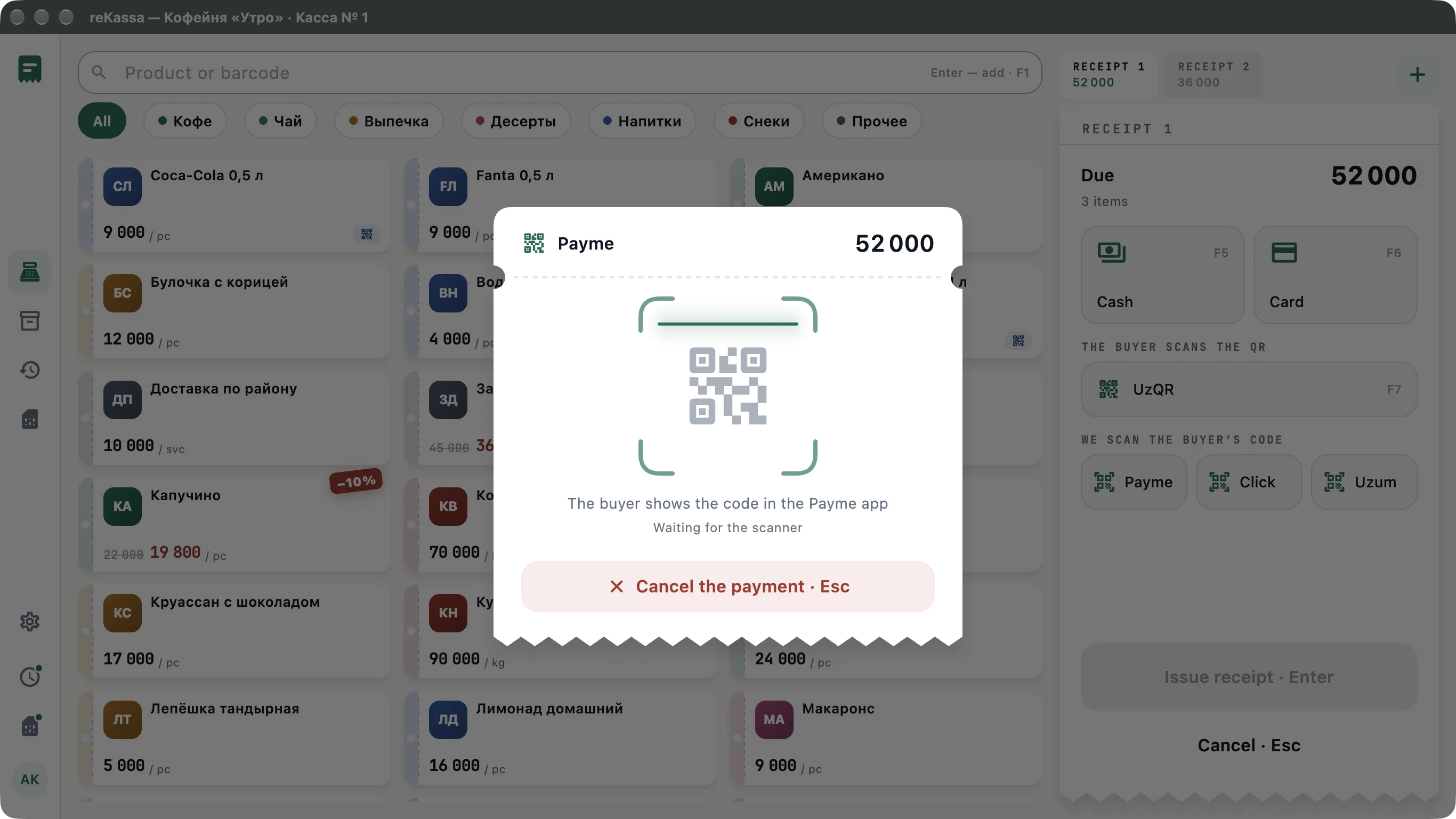
As soon as the money is taken, the register issues the receipt itself. «Cancel the payment» (Esc) stops the wait: if the buyer managed to pay, the register does not cancel the payment — it issues the receipt.
One part of a receipt can go through a payment system — the rest in cash or by card.
Issuing the receipt
Section titled “Issuing the receipt”After «Issue receipt» the register registers the receipt in the fiscal module. The receipt shows «RECEIPT ISSUED», its number, the fiscal sign and a QR code for checking it. «Done» (Enter) returns to the counter.
If a printer is chosen (Settings → Printer), the receipt is printed at once. Without a printer the receipt is issued all the same: open it in «History» and save it as PDF.
If the register says «Receipt not issued», the reason is under the heading. The receipt is not registered — fix the reason and press «Issue receipt» again: no second receipt appears.
Marking and prescriptions
Section titled “Marking and prescriptions”The register checks marking codes with the tax office before issuing. If the tax office does not answer, the register asks: «Marking check unavailable» — wait, or press «Issue without the check».
For a prescription medicine the register asks for the e-prescription: scan the QR on the buyer’s prescription and type the prescription’s number.