

Products and categories
The «Products» section is the register’s catalogue. It is shared with the cabinet and with the organisation’s other registers: a product added here appears everywhere.
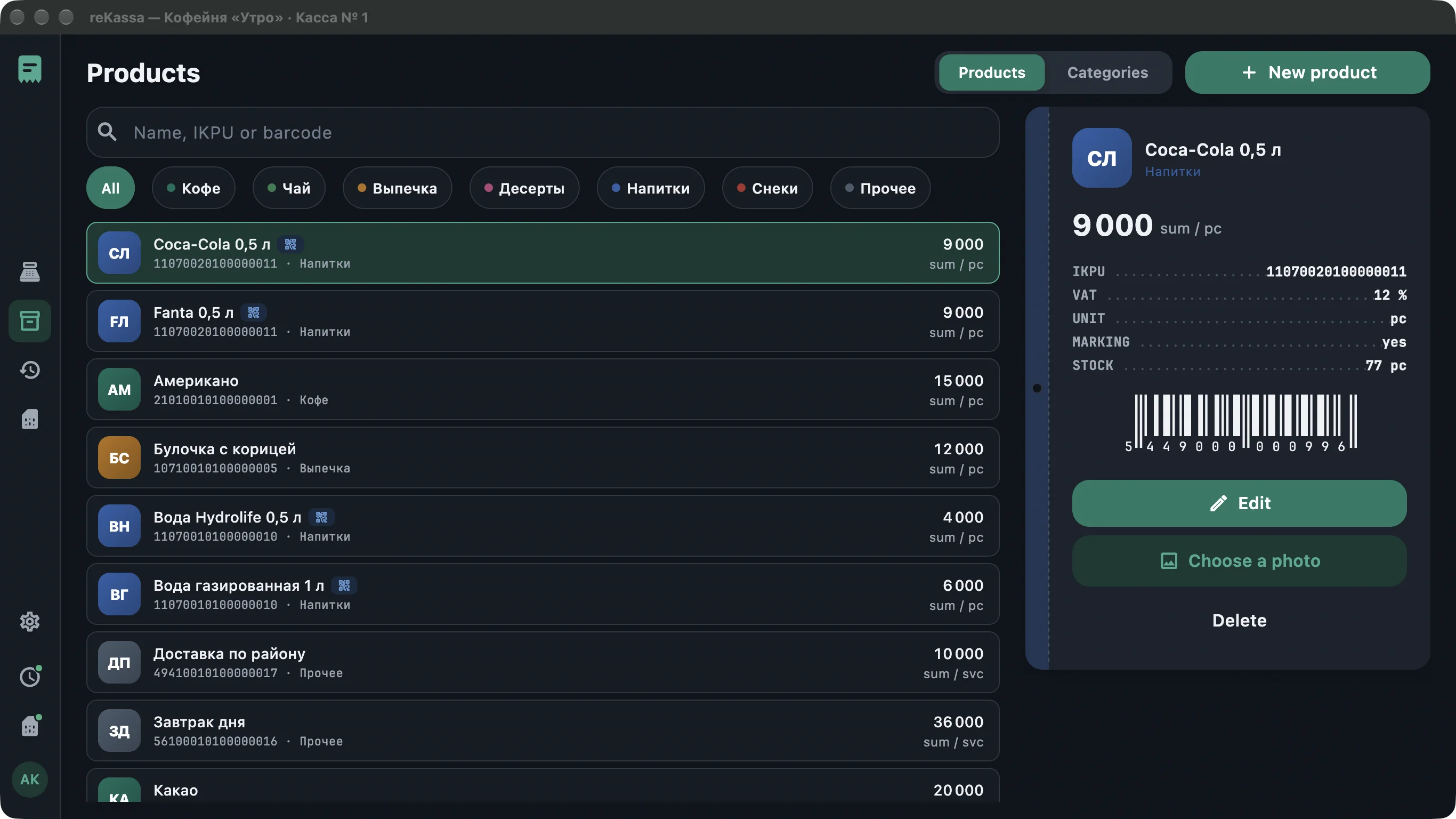
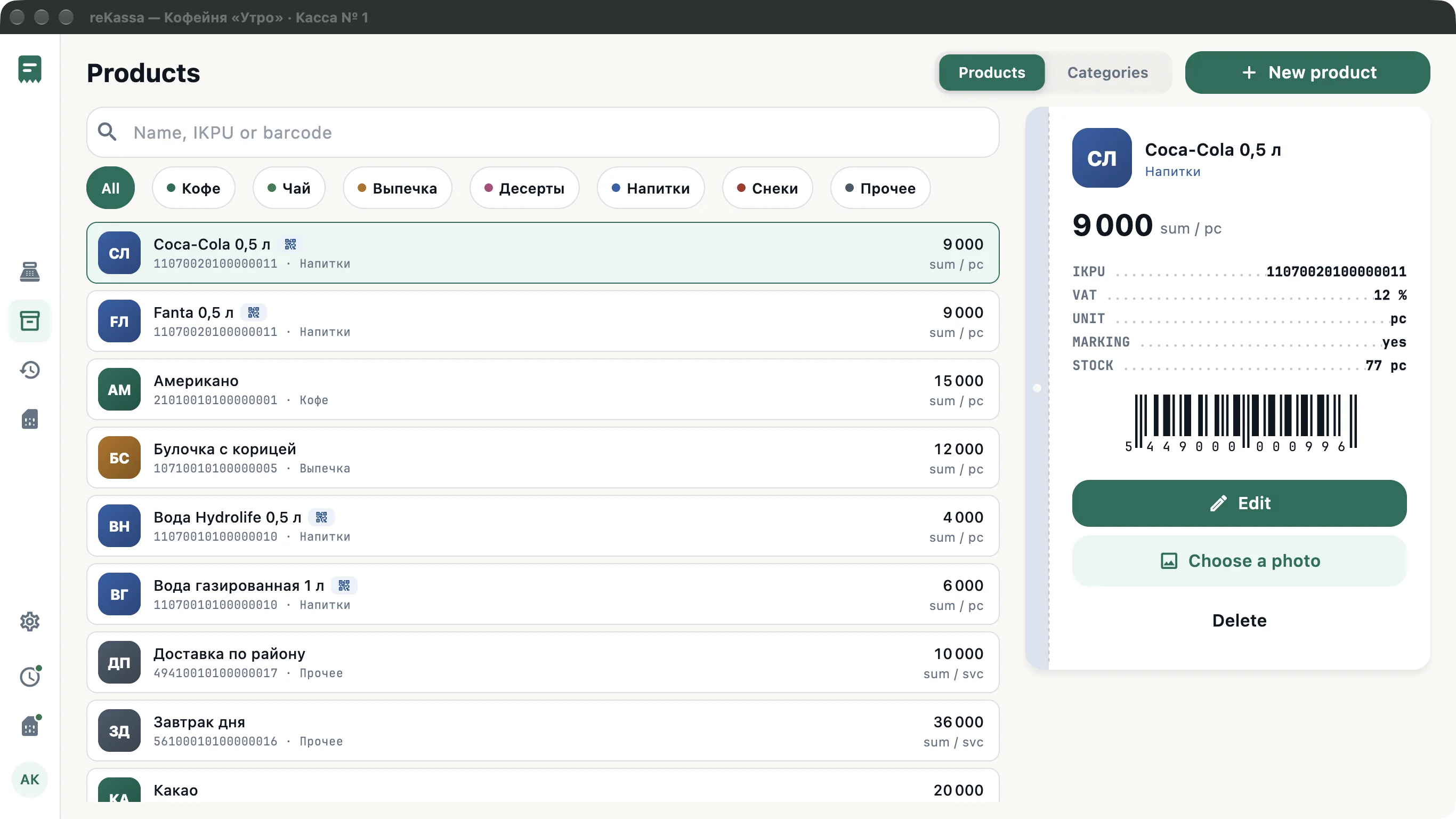
On the left is the list with a search by name, IKPU and barcode, and the categories. On the right is the card of the chosen product: the price, IKPU, VAT, the unit, marking, stock and the barcode. Stock is only shown on the register — it is kept in the cabinet; «not tracked» means no warehouse is set up for the product.
A new product
Section titled “A new product”The «New product» button opens the editor. «Edit» on the card opens it for an existing product.
-
Start typing the IKPU — the code or the product’s name. Choose a line from the classifier: the register fills in the name, the VAT rate, the units and the marking flag.
-
Check the name, set the price and, if there is one, the barcode.
-
Choose a category. A new one can be created right from the list — «New category».
-
On the right — the unit, «Fractional quantity» for goods sold by weight, VAT and «Who sells»: «Resale», «Own production» or «Service». This goes into the receipt for the tax office. When reselling someone else’s goods under a commission contract, give the consignor’s TIN or PINFL.
-
Save (Enter).
What the register does not let you do:
- The IKPU is not typed by hand — it is only chosen from the classifier. «No such IKPU in the classifier» and «This IKPU was removed from the classifier. Pick another» mean another code must be chosen.
- The 6 % rate is available only when the organisation has the tax office’s permission. Otherwise it is grey.
- Fractional quantity is closed when the tax office has not allowed the organisation to sell in fractions.
- Marking is neither set nor cleared by hand: the IKPU decides it.
«Show on the register» hides a product from the counter without deleting it. «Delete» removes the product from the register and from the cabinet; receipts already issued stay.
A product’s photo
Section titled “A product’s photo”The product card has «Choose a photo»: a JPG, PNG or WebP file up to 5 MB. The photo shows on the card, in the list and on the counter tile — on every register of the organisation. «Replace» and «Remove the photo» appear once there is a photo.
Whether photos show on the counter tiles is set in Settings → Window → «Product photos». Without a photo a tile shows the product’s initials on its category’s colour.
Categories
Section titled “Categories”The categories tab lists the categories with the number of products in each. Press a category to change its name and colour or to delete it: the products of a deleted category stay without one.
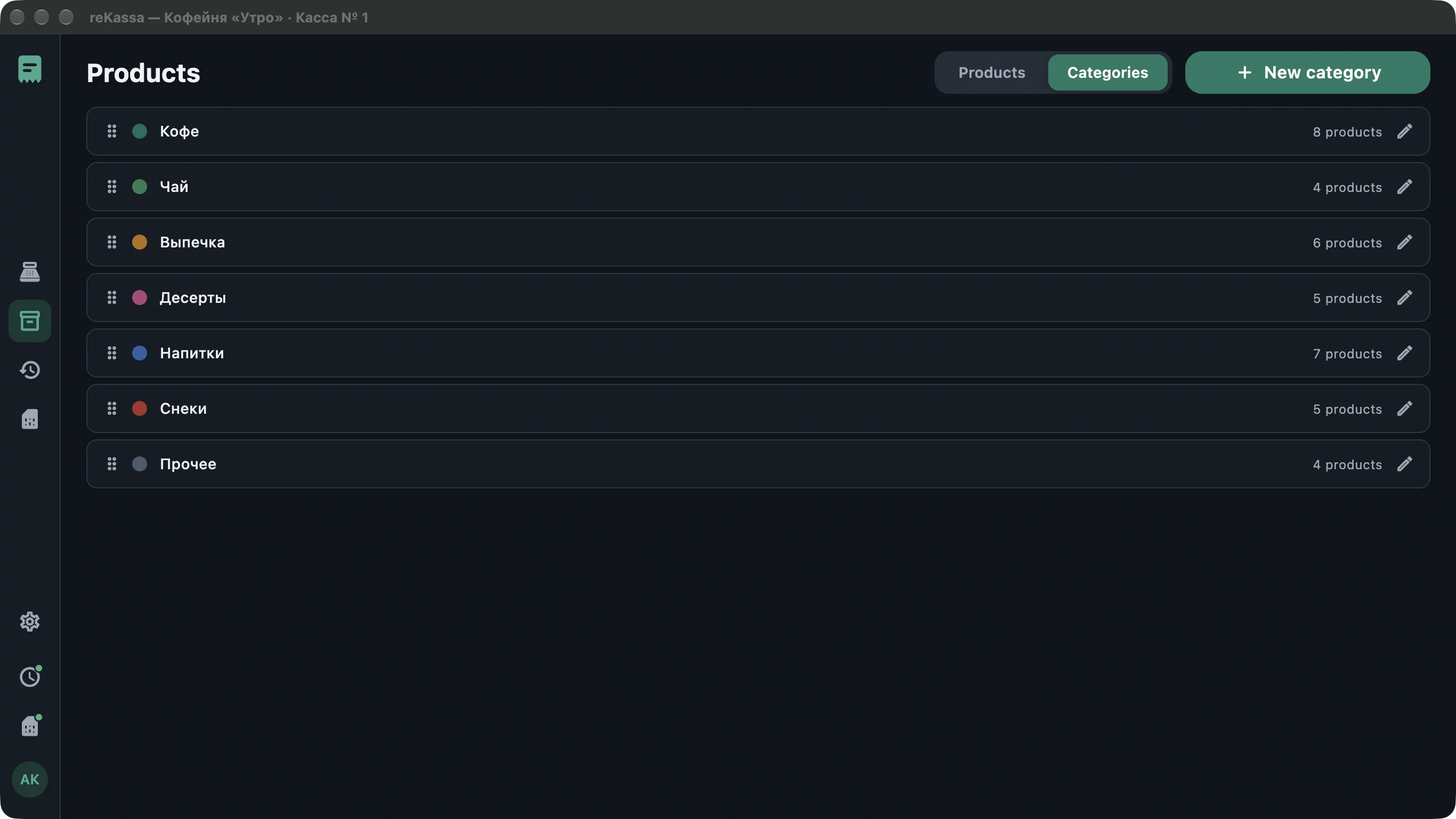
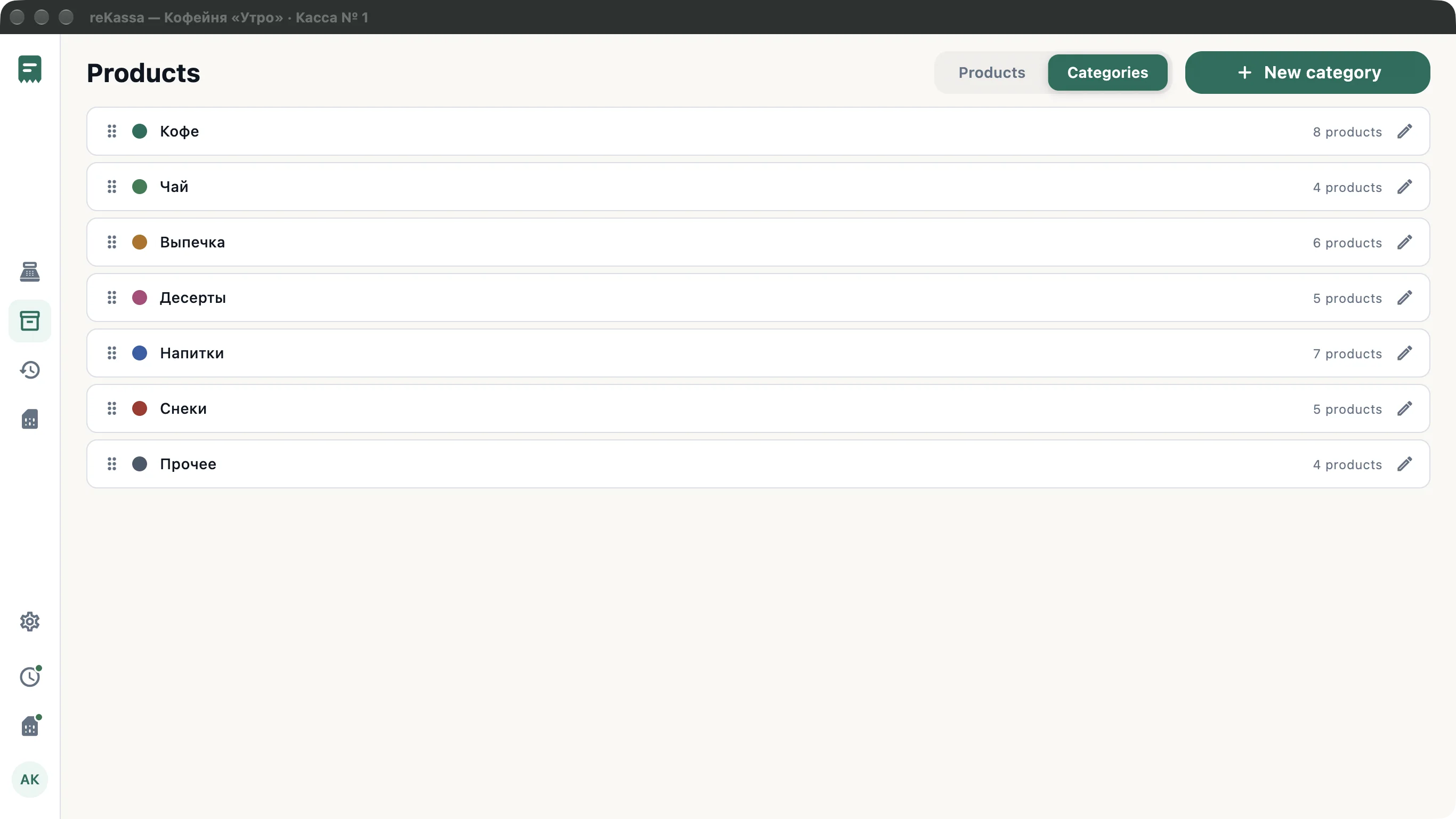
The order of the categories is changed by dragging the handle on the left. The counter shows the categories in the same order.